
Support
Customer Service
Business Office
103 N. Main St.
Wheatland, IA 52777
Mon. – Fri. 7:30 am – 4 pm
(563) 374-1236
After-Hours Support
Internet and Phone Outages
(563) 374-1238
Report after-hours service interruptions. Follow the prompts to page the on-call technician.
Internet Helpdesk
Internet Technical Support
(563) 374-3322 or 1-888-832-4322
24/7 Internet connection and email troubleshooting
Reference Guides
How-To Videos
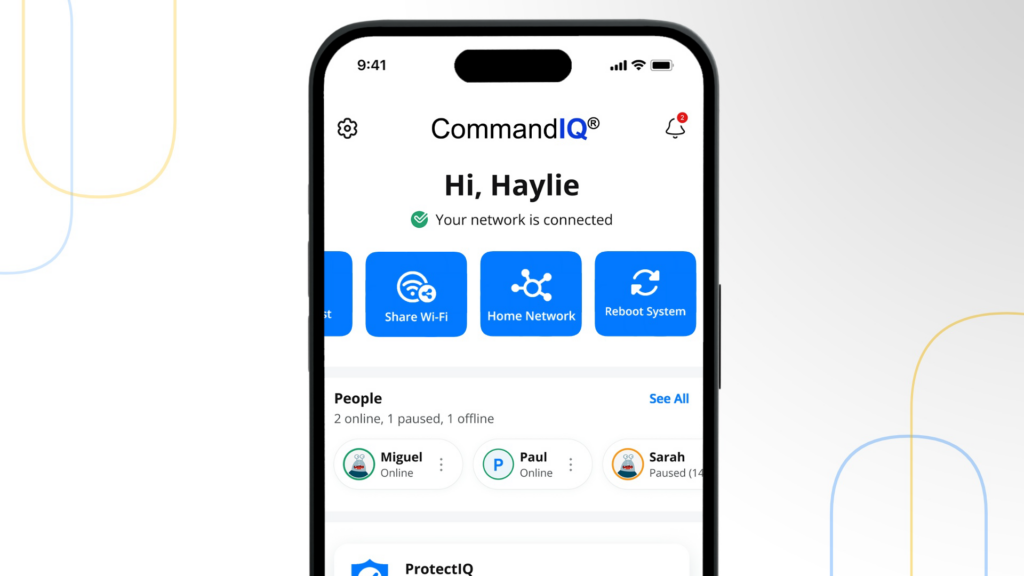
CommandIQ: App Setup
CommandIQ: Main Dashboard
CommandIQ: Quick Links
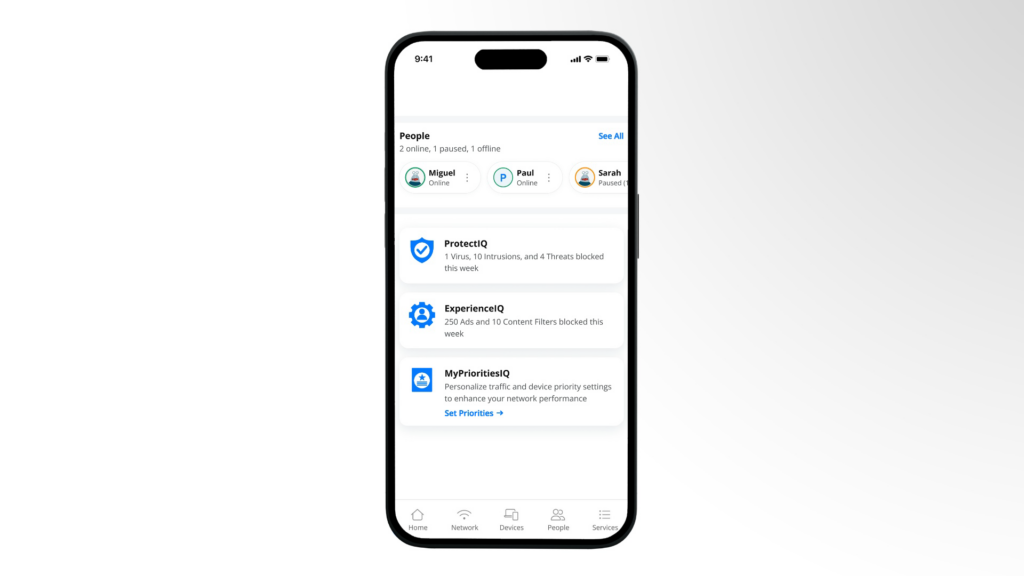
CommandIQ: Tiles and Announcements
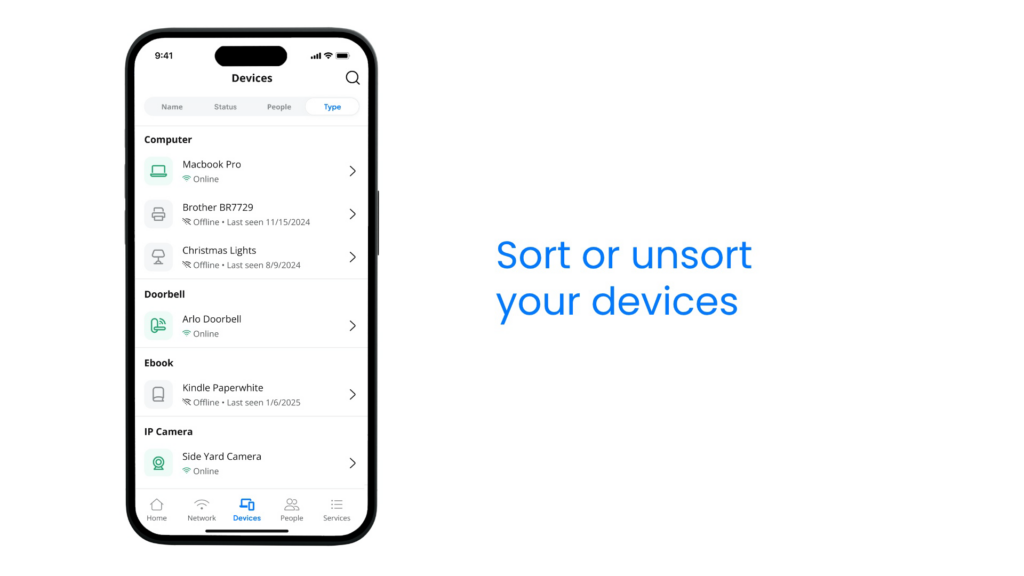
CommandIQ: Connected Devices
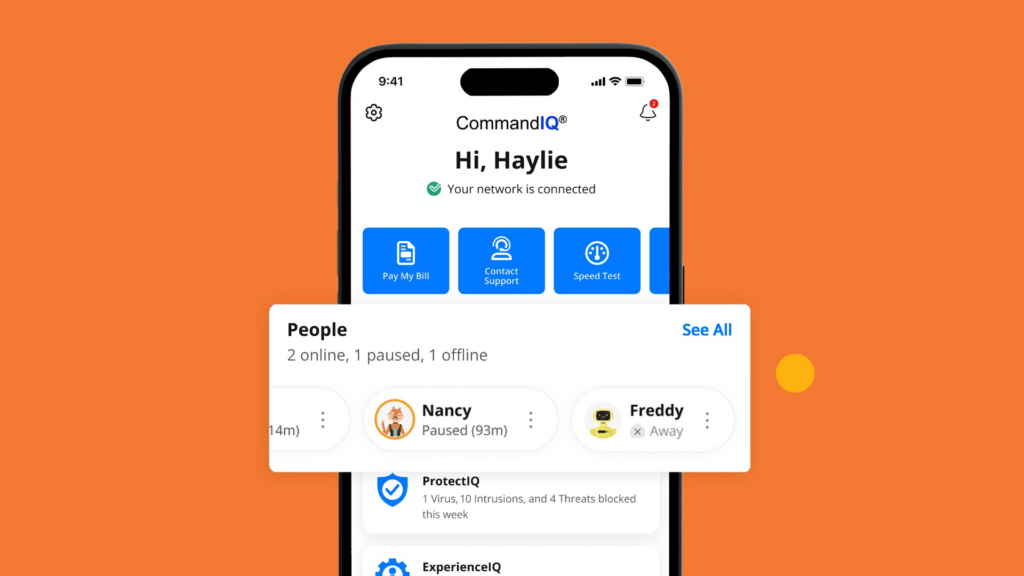
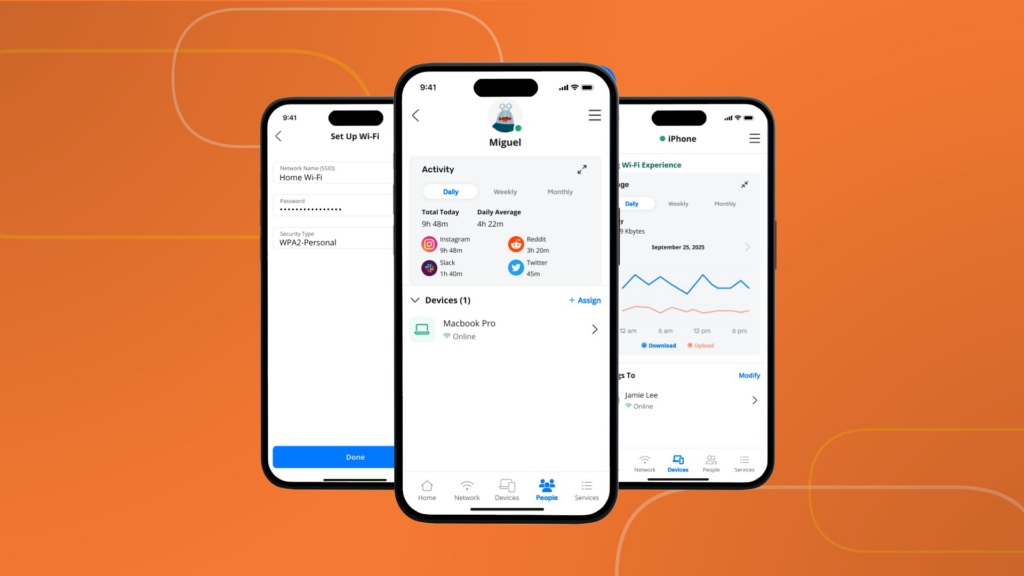
CommandIQ: People
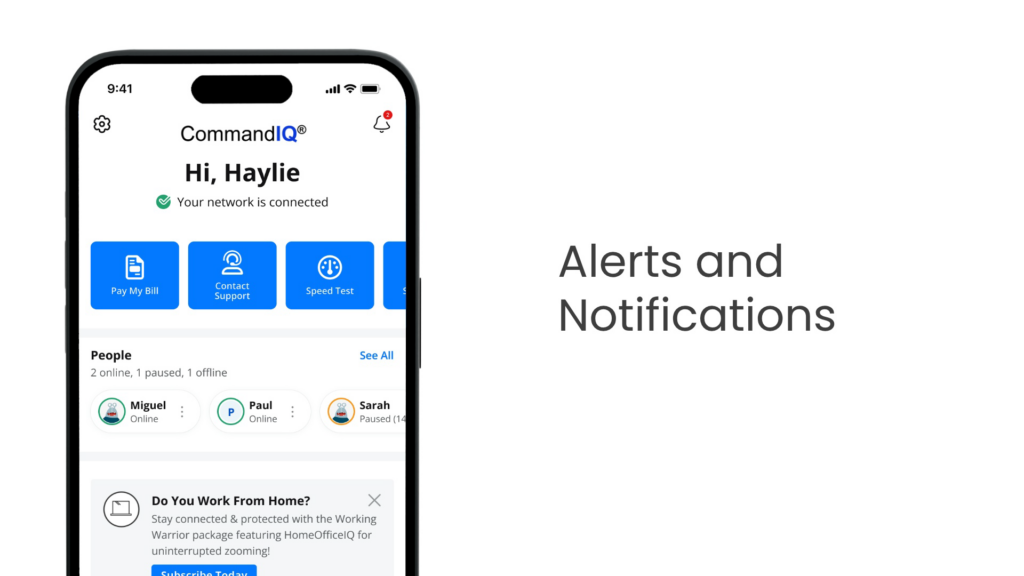
CommandIQ: Notifications
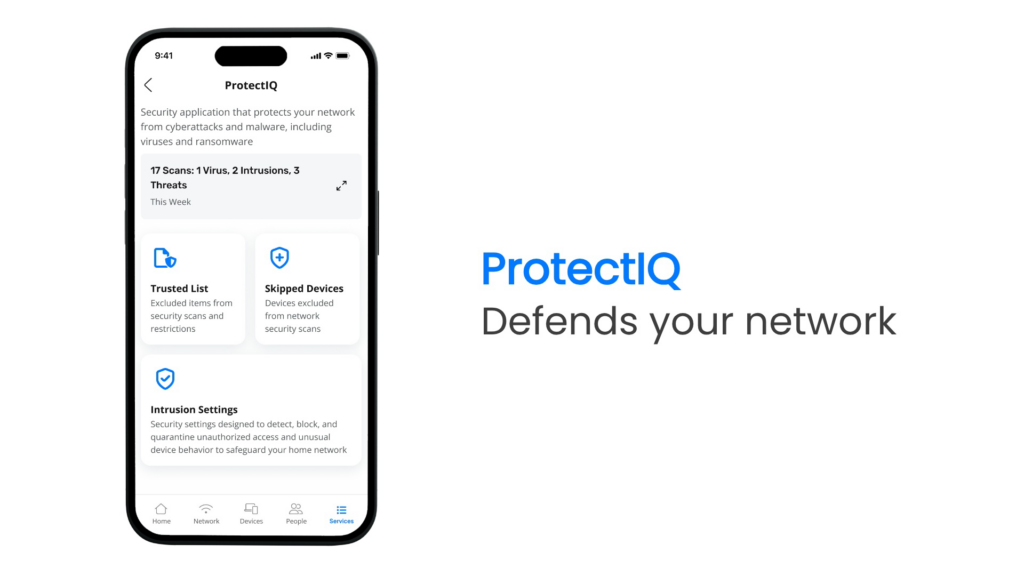
CommandIQ: ProtectIQ
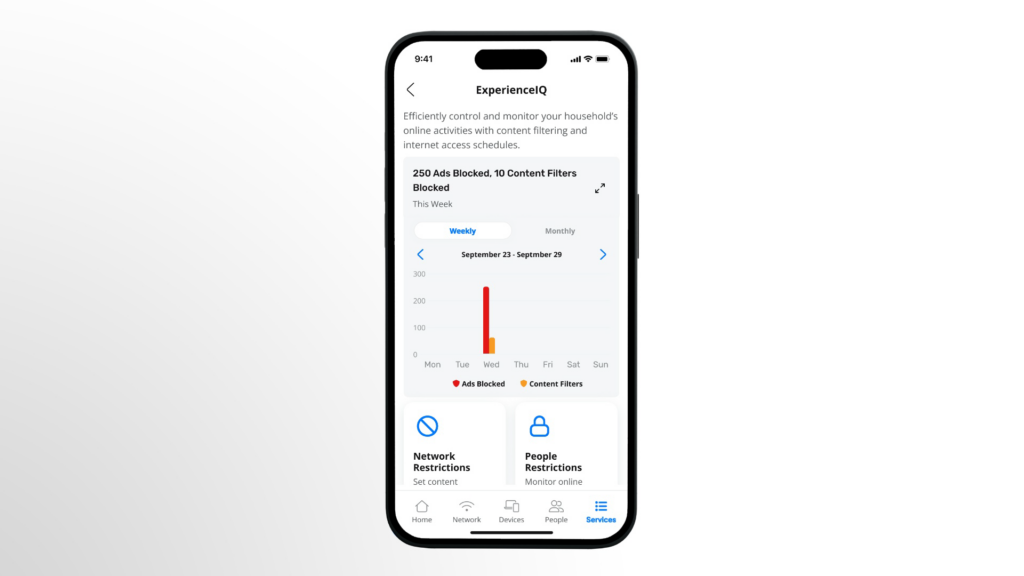
CommandIQ: ExperienceIQ
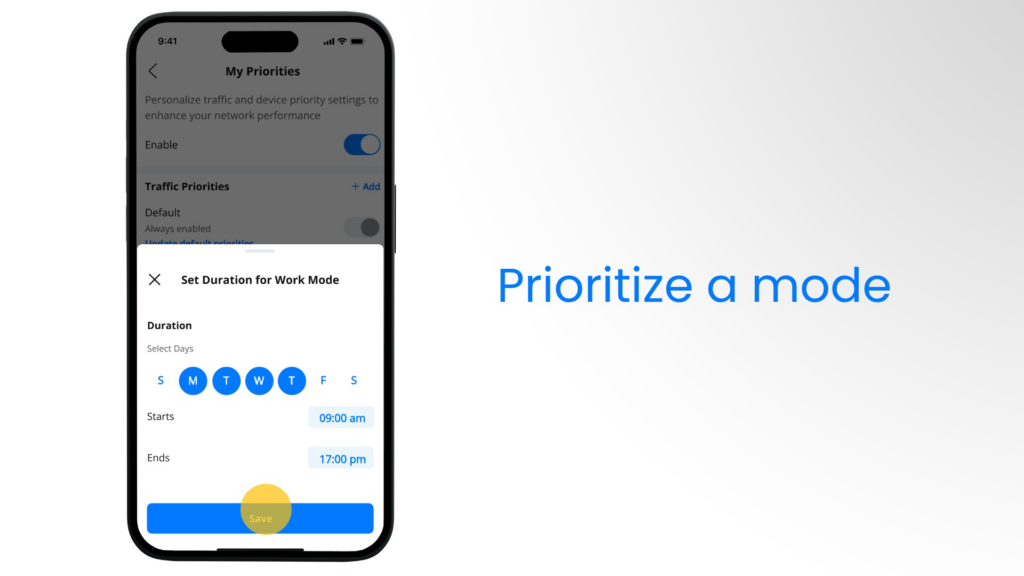
CommandIQ: MyPrioritiesIQ
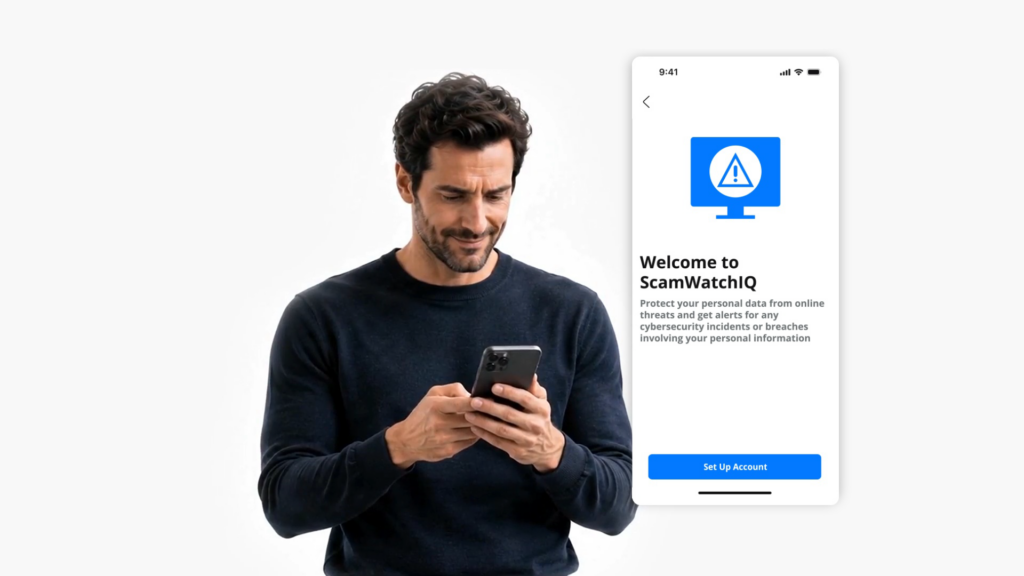
CommandIQ: ScamWatchIQ
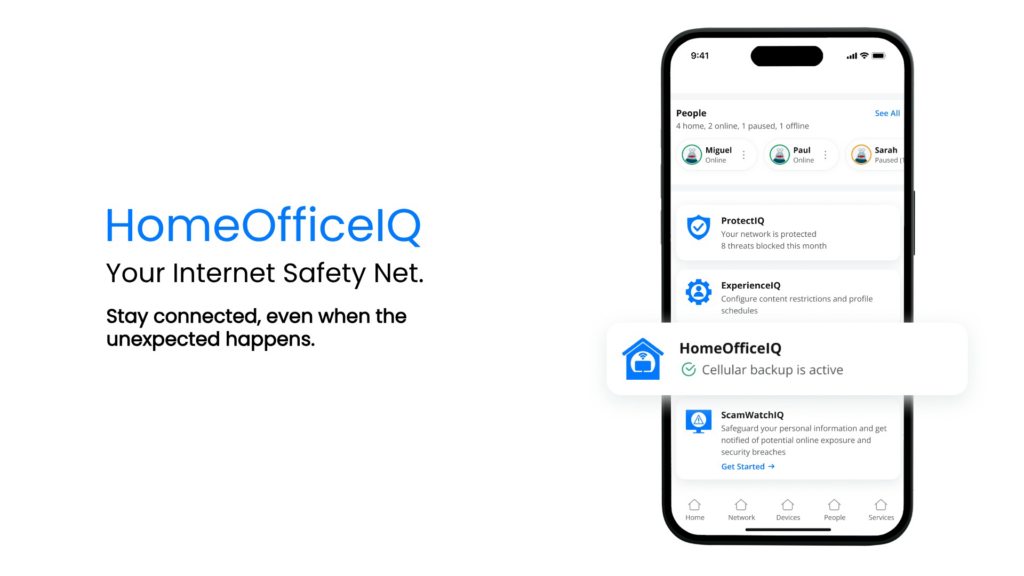
CommandIQ: HomeOfficeIQ
Frequently Asked Questions
What is CommandIQ?
CommandIQ is a powerful and easy-to-use mobile app that puts you in control of your home Wi-Fi. From your smartphone or tablet, you can:
- Manage your network – Change your Wi-Fi name and password anytime.
- Monitor connected devices – See what’s online and manage access.
- Set up parental controls – Keep your family safe with content filters and usage limits.
- Run speed tests – Check your internet performance instantly.
CommandIQ works seamlessly with Managed Wi-Fi GigaSpire systems available from F&B Communications. Whether you’re a tech-savvy user or just want a simple way to manage your Wi-Fi, CommandIQ is built to meet your needs.
Where can I download CommandIQ?
CommandIQ is available for download on both the Apple App Store and Google Play Store. Simply search for “CommandIQ”.
Is there a cost to use CommandIQ?
The app is free to download and use with F&B Communications’ Managed Wi-Fi and GigaSpire routers. Some advanced features may require an upgraded Internet plan.
What security features are included in ProtectIQ?
Enjoy greater peace of mind knowing your home network includes built-in security features designed to help protect your connected devices.
ProtectIQ provides an additional layer of network-level security that works around the clock to help protect your home from online threats. It monitors network traffic and can automatically block known malicious websites, viruses, ransomware, and intrusion attempts before they reach your connected devices.
With ProtectIQ, you can:
- Block known threats automatically before they reach devices on your network.
- Protect connected devices at the network level, including devices that may not have their own security software.
- Block known malicious websites to help protect against unsafe online activity.
- Receive notifications through CommandIQ when a threat is detected and blocked.
- Help prevent unauthorized devices from attempting to access other devices on your network.
F&B also maintains your Managed Wi-Fi router by regularly applying software updates, helping keep your router current with the latest available software and security improvements. There’s no need to track down or install router updates yourself.
What is ScamWatchIQ and how does it help protect me?
ScamWatchIQ helps you stay informed about potential scams and identity threats by monitoring your email addresses for signs that your information may have been compromised.
With ScamWatchIQ, you can:
- Monitor up to 10 email addresses for information exposed in known data breaches or found on the dark web.
- Receive alerts through CommandIQ if a monitored email address is discovered, so you know when your information may be at risk.
- Get guidance on what to do next when a potential compromise is identified.
- Help protect your household by monitoring email addresses for family members, including parents, children, and seniors.
While ProtectIQ helps protect the devices and traffic on your home network, ScamWatchIQ focuses on you and your personal information, giving you another way to stay informed and take action when your information may have been exposed.
When ScamWatchIQ is enabled for your account, you will receive a welcome email with instructions for getting started. The email will come from no_reply@scamwatchiq.com, so be sure to look for this sender in your inbox.
Below is an example of what the email will look like:
Hi <<CUSTOMER NAME>>, you can now create an account for ScamWatchIQ that is provided by your internet provider. You will need to use F&B Communications CommandIQ in order to set up your account. If you do not have F&B Communications CommandIQ, please download it here for Android or iOS.
Android: https://play.google.com/store/apps/details?id=com.calix.smarthome&pli=1
iOS: https://apps.apple.com/ca/app/commandiq/id1437258693
Please open the app and simply click the ScamWatchIQ tile to get started.
What is MyPrioritiesIQ?
MyPrioritiesIQ is a feature within the CommandIQ app that gives you more control over your home Wi-Fi experience. It allows you to prioritize bandwidth for specific activities—such as Gaming, Work, or Entertainment—based on what matters most to you at any given time.
Using a simple interface, you can select a mode that fits your current needs:
Work Mode
- Prioritizes bandwidth for tasks like video calls, file uploads, and cloud collaboration tools.
- Minimizes lag and interruptions during Zoom or Teams meetings.
- Speeds up syncing and sharing of work documents.
- Helps create a smoother, more reliable connection for remote work.
Entertainment Mode
- Prioritizes bandwidth for streaming services, music, and media apps.
- Improves video quality and reduces buffering on platforms like Netflix, YouTube, and Spotify.
- Helps ensure smooth playback—even during peak hours.
- Ideal for movie nights, music sessions, and binge-worthy shows.
Gamer Mode
- Prioritizes gaming traffic for faster, more responsive gameplay.
- Minimizes lag and latency during online matches.
- Reduces interference from background devices and apps.
- Helps deliver smoother, uninterrupted gaming sessions.
This feature helps ensure that your Wi-Fi performs at its best, no matter what you’re doing.
What are user profiles, and how can they help manage devices and network use?
CommandIQ gives you smarter control over your home Wi-Fi by intelligently managing how bandwidth is shared across devices and activities. Whether you’re working, gaming, or streaming, the app helps ensure your most important tasks get the strongest connection.
User Profiles for Device Management
With CommandIQ People, you can assign devices to individual household members using custom user profiles. This gives you more control over how each person connects to your home network.
Here’s what you can do:
- Set internet time limits to manage screen time for kids or teens.
- Filter content to block inappropriate websites and keep browsing safe.
- Track activity to see how and when devices are being used.
By organizing devices by user, you can indirectly prioritize bandwidth—making sure work calls, homework, and streaming all get the connection they need, when they need it.
How can I set up parental controls?
Create a safer, more manageable online experience for your family with parental controls available through CommandIQ.
- Open the app and go to the “People” section.
- Create a profile for your child or select an existing one.
- In the Devices section, click Modify to add devices.
- Customize settings like internet access schedules, content filters, and device restrictions to fit your family’s needs by clicking the three horizontal lines in the upper right-hand corner.
- Your changes take effect right away and can be updated anytime.
- To set content restrictions for all devices on your network, go to ExperienceIQ and tap Network Restrictions.
How do I run a speed test?
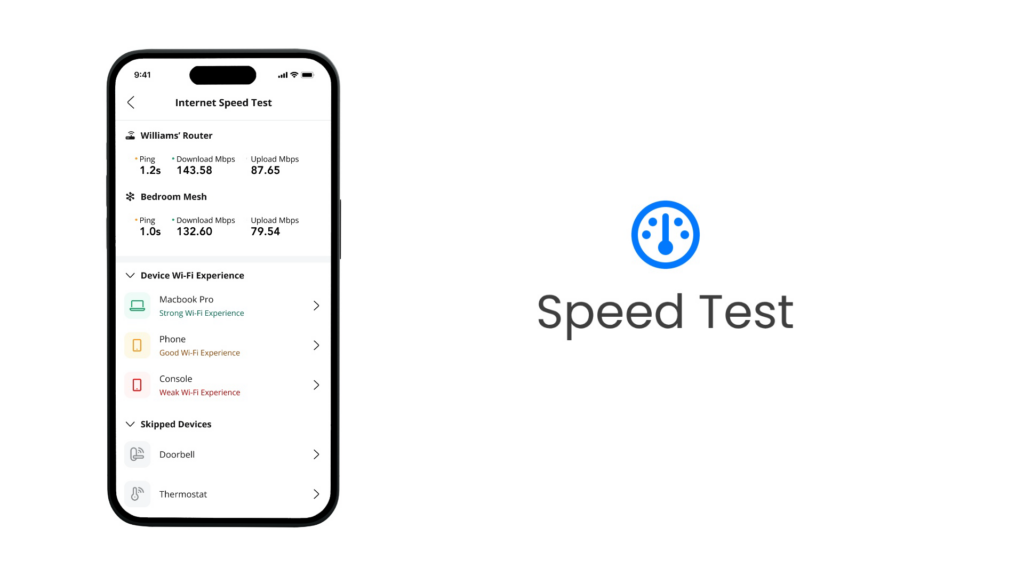
From the main dashboard Quick Links, tap “Speed Test” to measure your Internet connection’s upload and download speeds. Results are displayed in real time and stored for future reference.
The CommandIQ app makes it easy to run speed tests for individual devices, giving you clear insights into Wi-Fi strength, download and upload speeds, and latency. Each device is rated as Strong, Good, or Weak, helping you quickly spot and resolve connectivity issues.
Why are my devices not showing up in the app?
Some devices may not show up if they’re not currently connected, are using a different Wi-Fi network name (SSID), or have been blocked by parental controls. Refresh the device list or restart the app to update your view.
Additional Resources
INTERNET: Common Settings
- Your E-mail Address: username@fbcom.net
- POP Account/Username: username@fbcom.net
- Return/Reply Address: username@fbcom.net
- Incoming Mail Server (IMAP): imap.fbcom.net (993/143)
- Incoming Mail Server (POP3): pop3.fbcom.net (995/110)
- Outgoing Mail Server (SMTP): smtp.fbcom.net (465/587)
*Be sure to configure your mail client to login or authenticate on sending.
- Primary DNS Servers (Name): 207.199.234.17
- Secondary DNS Servers (Name): 137.118.1.32
- IP Address: assigned by server
TELEPHONE: VoiceMail and Calling Feature Instructions
Share the Experience
Refer a friend and receive a $25 credit.